
All guides
Create and manage queues
Create a queue, describe it for customers, and pause, close, or delete it.
Create a queue
A queue is one line of customers, such as a reception desk, a department, or a single chair. Each queue has its own QR code and link.
- 1Go to Queues and tap Create queue.
- 2Enter a Queue name. Name the service, not a person, for example "Reception".
- 3Add a short Description if you like. Customers see it when they scan the code.
- 4Tap Create.
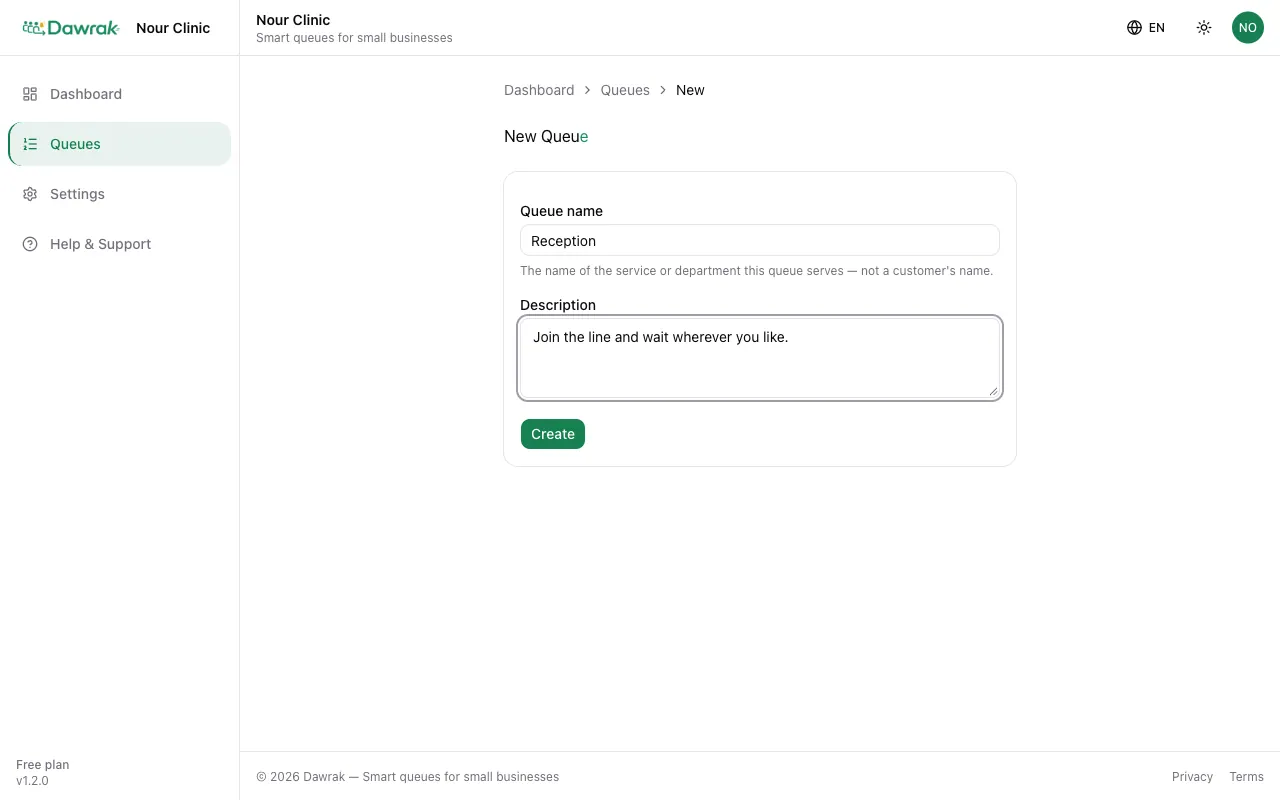
The Free plan includes one queue. Settings › Plan & Limits shows your limits.
Your queues
The Queues page lists every queue with its status. Tap Open queue to run it, or Share QR to show its code.
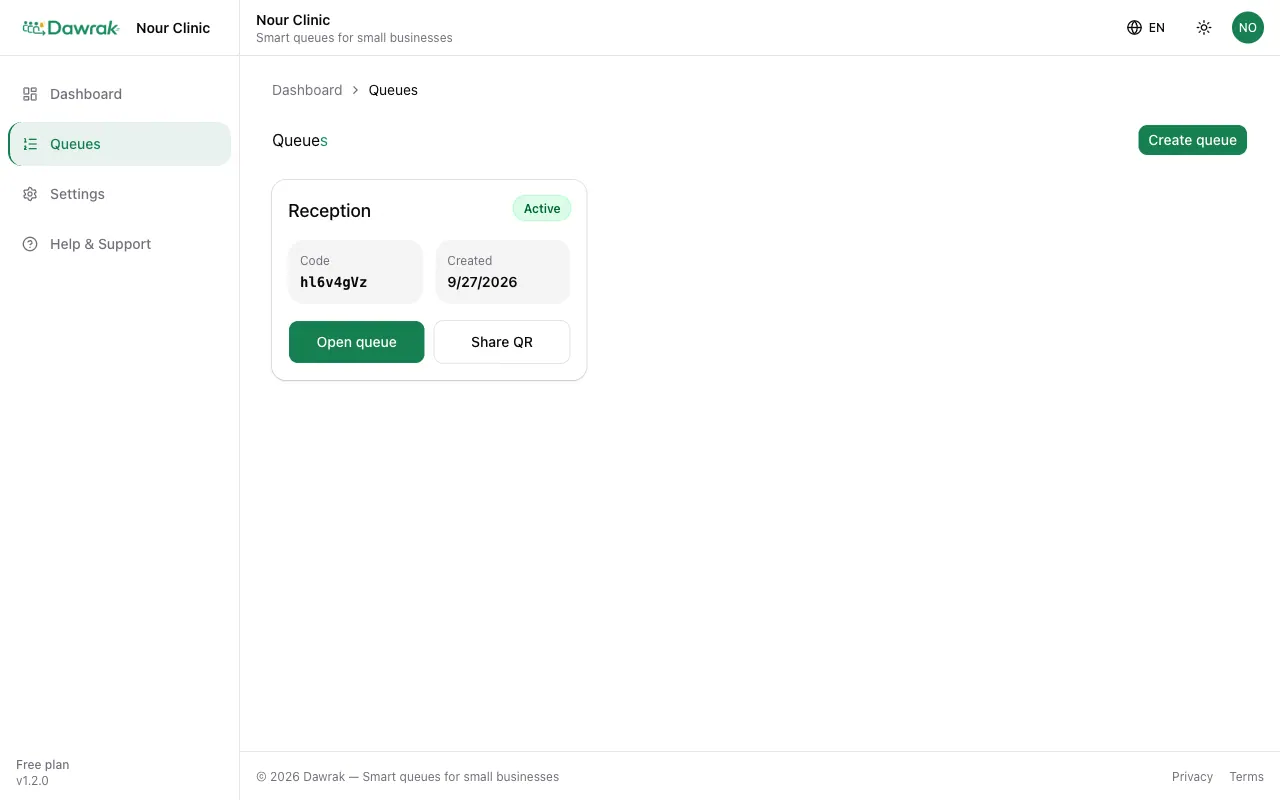
Pause, close, or delete
Open a queue and tap Edit to change its name, description, or Status.
- Active: customers can join.
- Paused: nobody new can join. People already waiting keep their place and see a notice.
- Closed: the queue stops accepting customers.
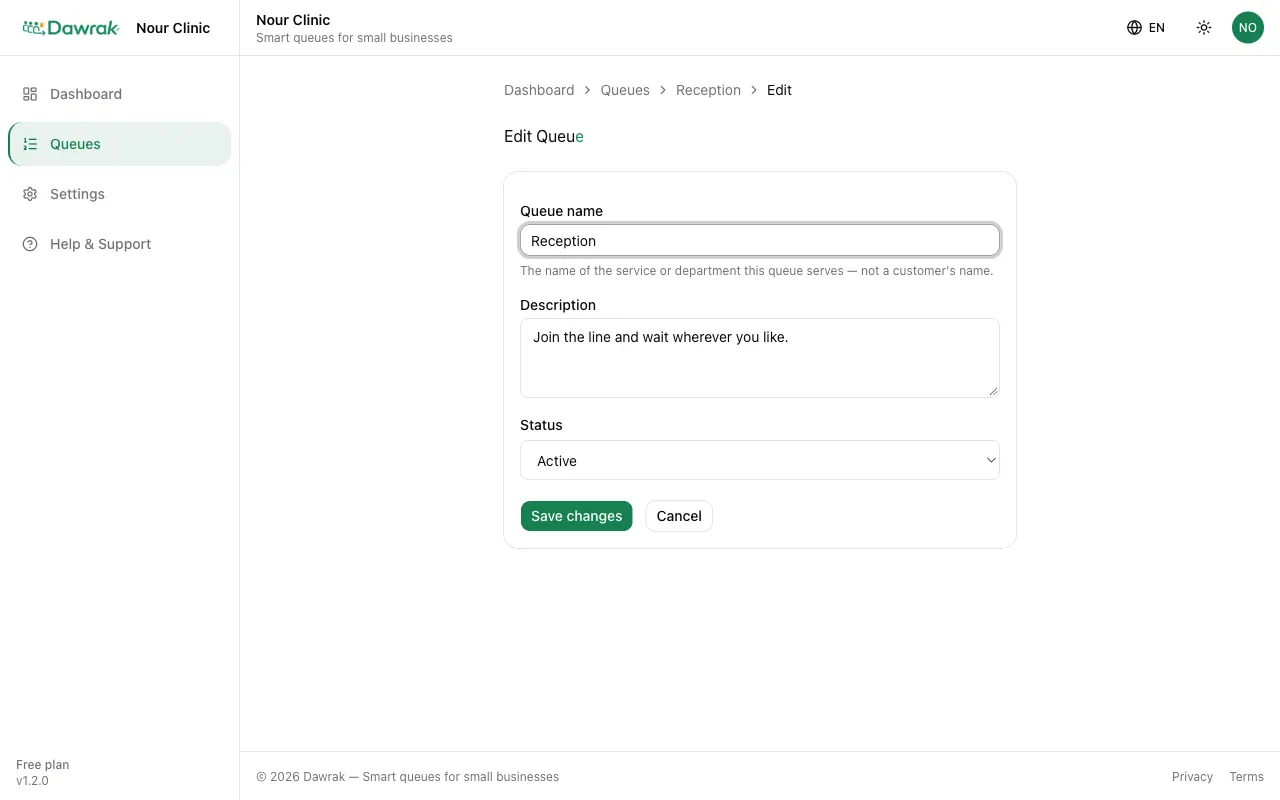
Delete removes the queue and its history permanently. Only the business owner can delete a queue.