All guides
Run the live queue
Call customers, mark them served or absent, add walk-ins by hand, and approve requests.
The live queue
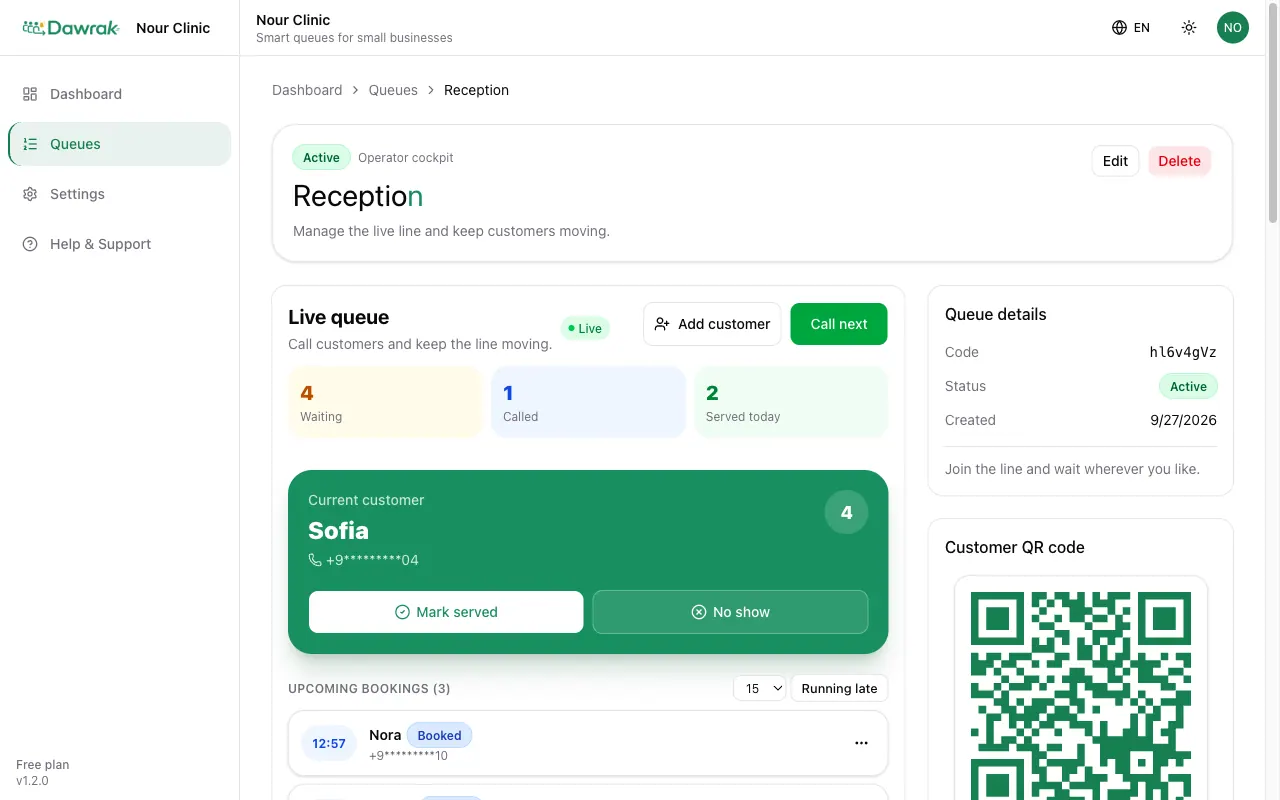
Open a queue to see the Live queue card. It updates by itself the moment someone joins, cancels, or checks in. The badge next to the title shows the live connection.
Call the next customer
- 1Tap Call next. The next person moves to the Current customer card and gets a "your turn" alert on their phone.
- 2When you finish, tap Mark served.
- 3If they do not come, tap No show to release their place.
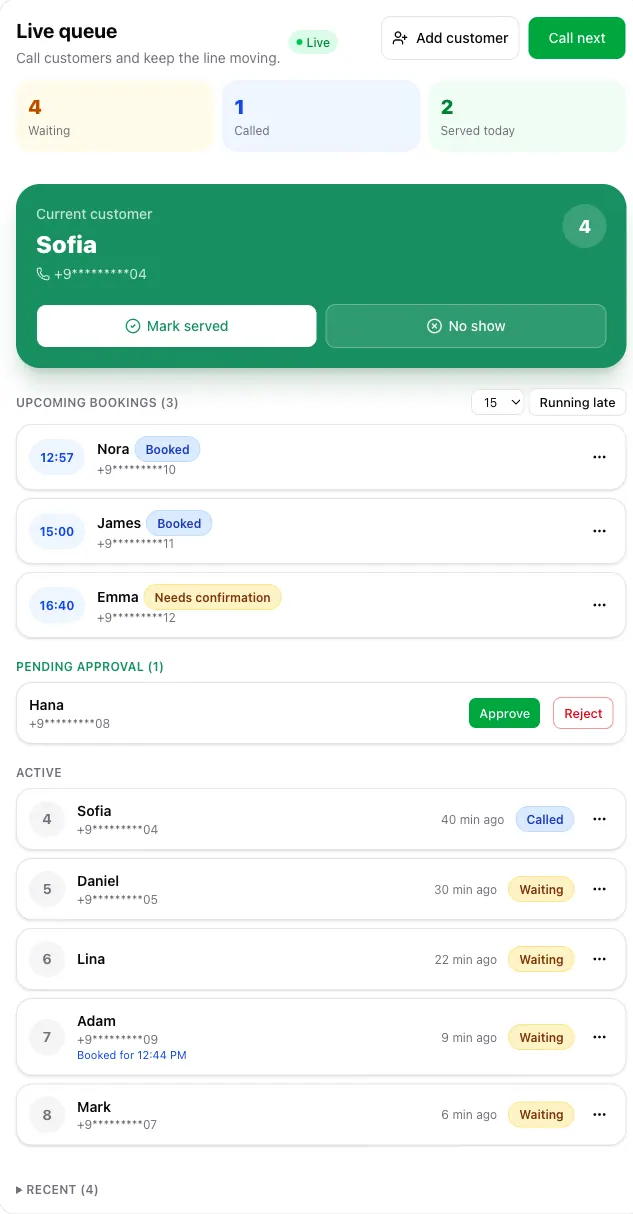
Each waiting person has a menu for calling them out of order or cancelling their entry. Recent lists the last people served, cancelled, or marked absent.
When remote booking is on, Call next follows your booking rules. A hint under the current customer says whether it called a booked customer or a walk-in.
Add a customer by hand
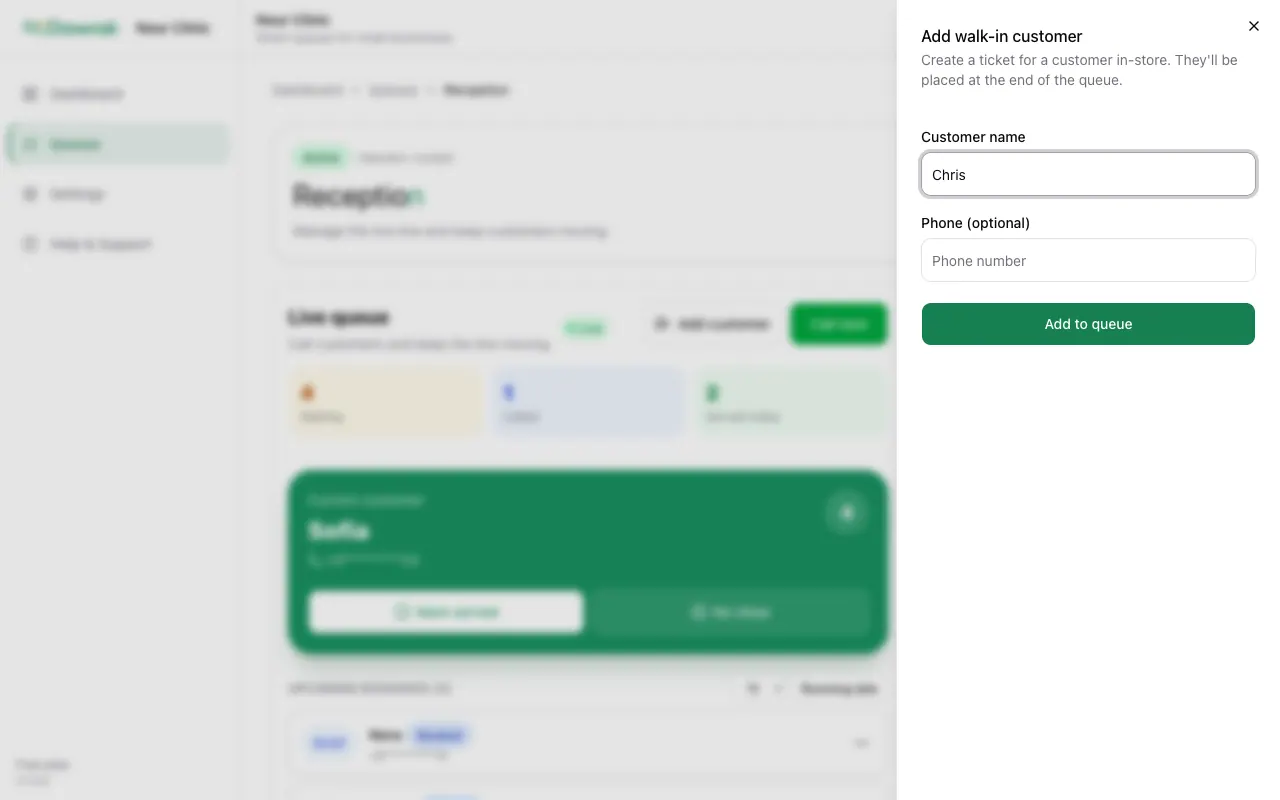
Some customers have no smartphone. Tap Add customer, type a name and an optional phone, then Add to queue. They join at the end of the line.
After adding, Print ticket prints a slip with their number. The wall display and the slip use the same numbers as the digital queue.
Approve join requests
If you turned on approval in Settings › Security, new customers appear under Pending approval. Tap Approve to put them in the line or Reject to cancel the request. They see the result on their phone.
On your phone
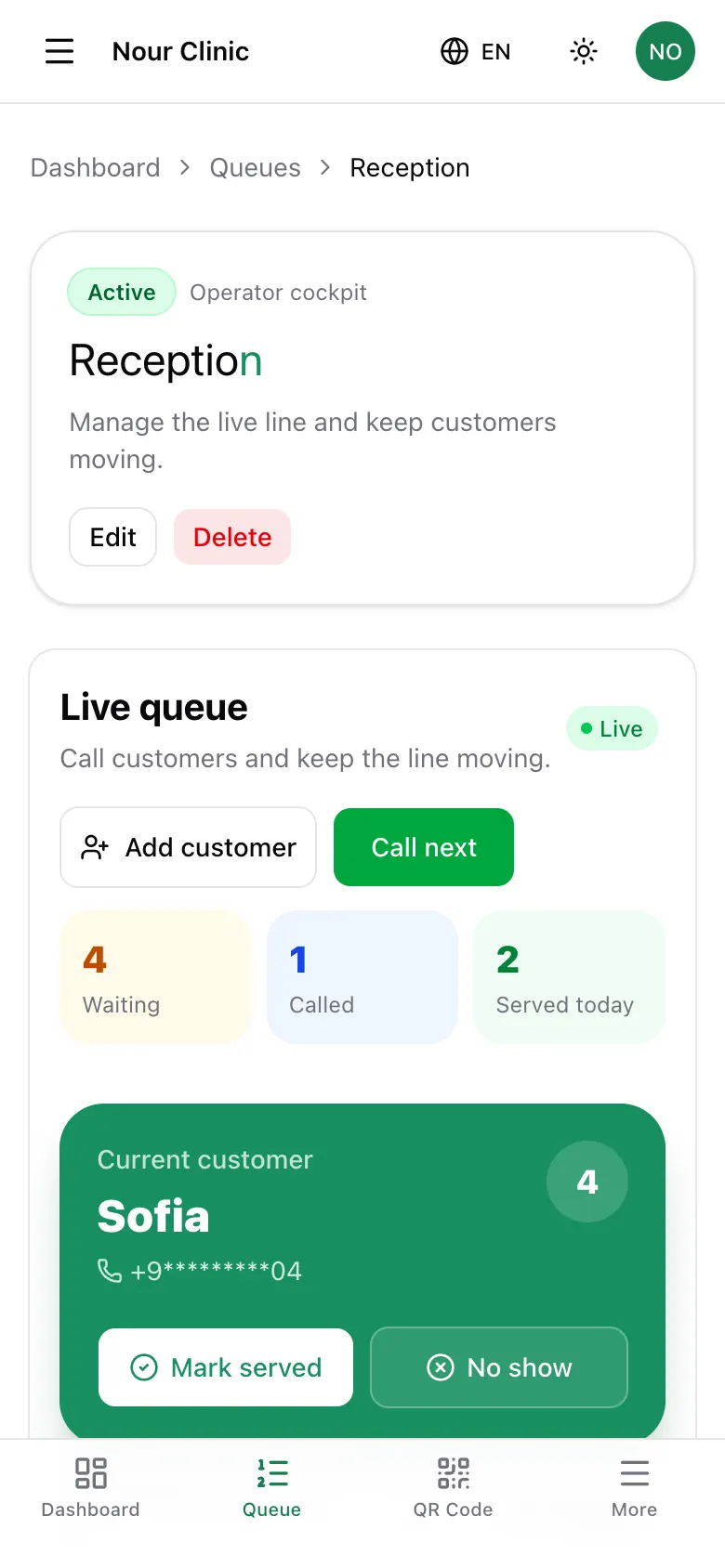
The live queue works the same on a phone, so staff can run the line from the counter or the floor.